How Branches Work
A branch is a copy of your design that you can change without touching the version that works. Branches are fully optional: if you never start one, your project simply stays on main and works exactly as before.
If you know branches from Git or GitHub, the editor implements a simplified version. There are no commits: a branch is always just its latest saved state, and merges work with those states directly. If you don't know Git, this page walks through one small project from start to finish.
Why branches
Say your 555 LED blinker works and is laid out on a 13 by 9 board. You wonder whether it would fit on something smaller. Squeezing the layout could go wrong, and you would rather not lose the board you have.
Without branches you would duplicate the project and end up with two that slowly drift apart. A branch keeps the experiment inside the same project: you can switch between the two at any time, carry changes from one to the other, and fold the experiment back in when it works out.
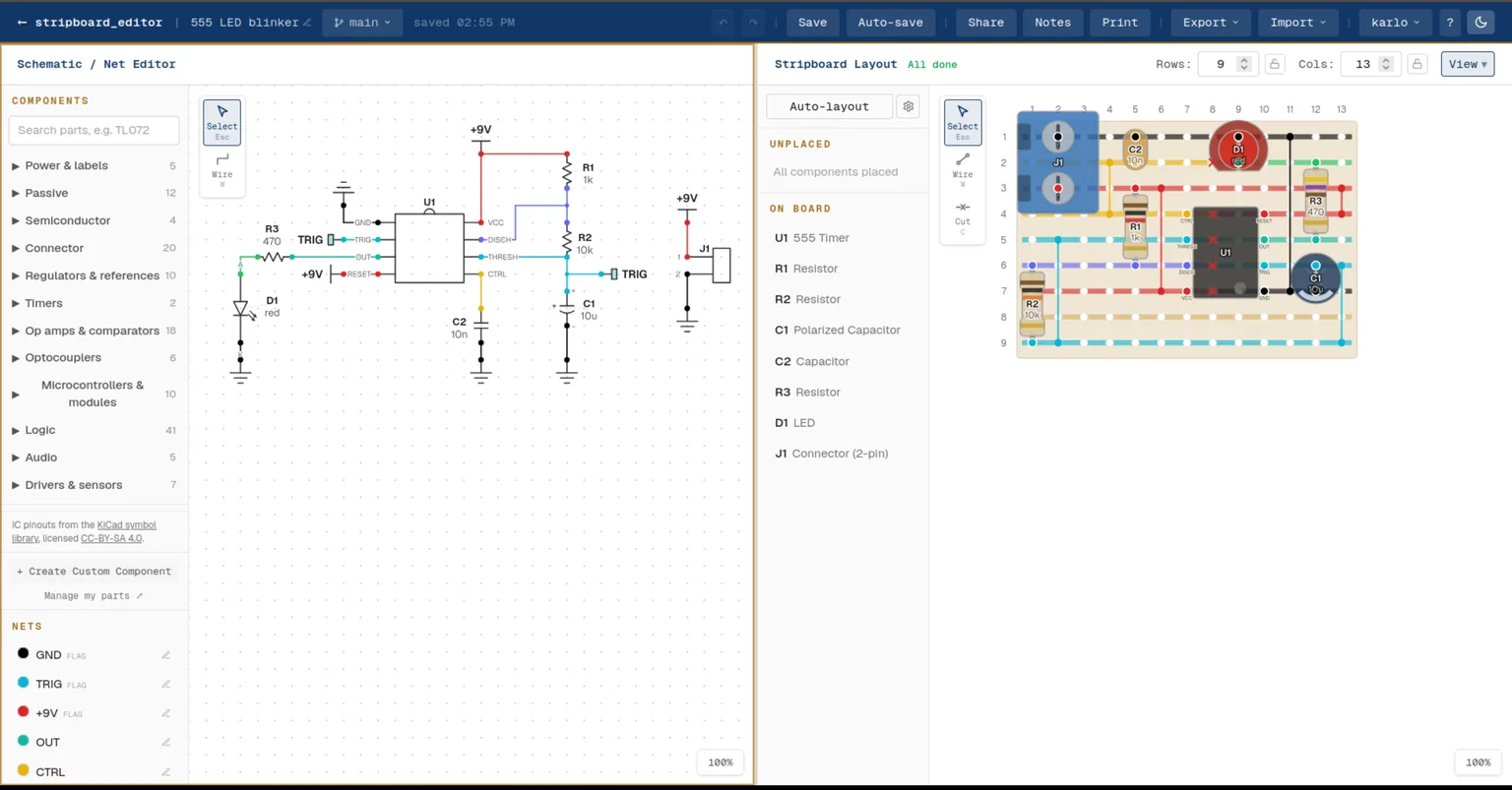
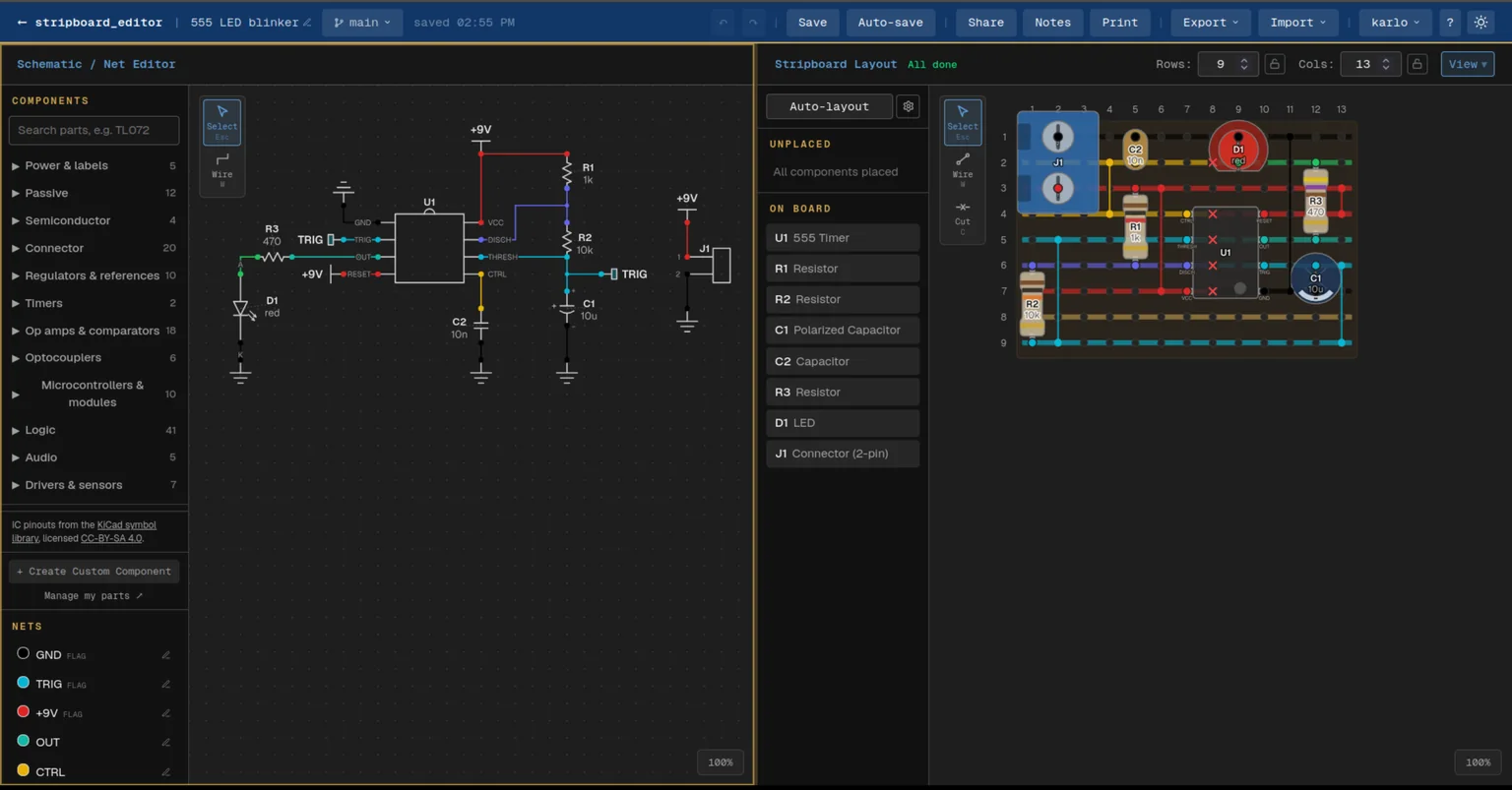
Starting a branch
Every project starts with one branch, called main. Its name sits next to the project name in the toolbar, so you always know which one you are editing. Click it for the branch menu.
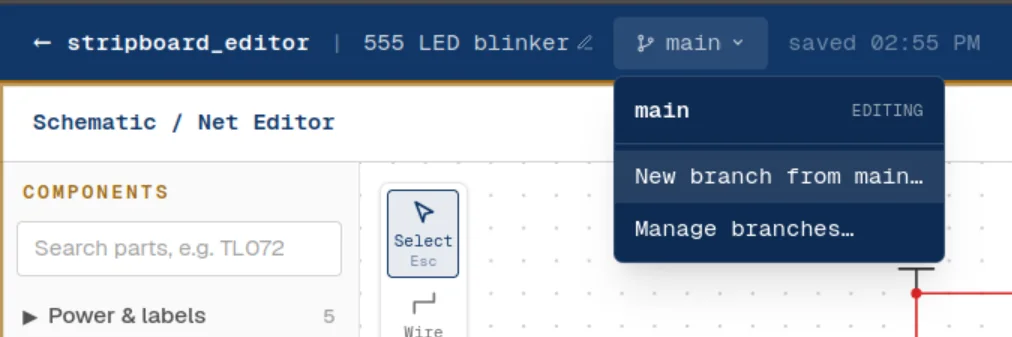
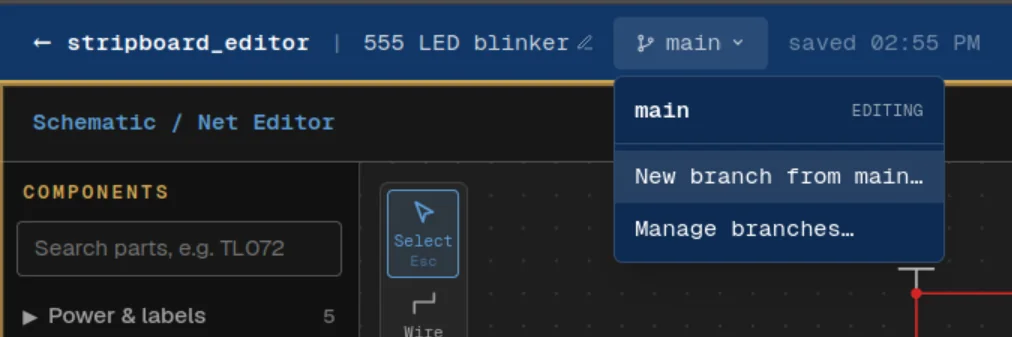
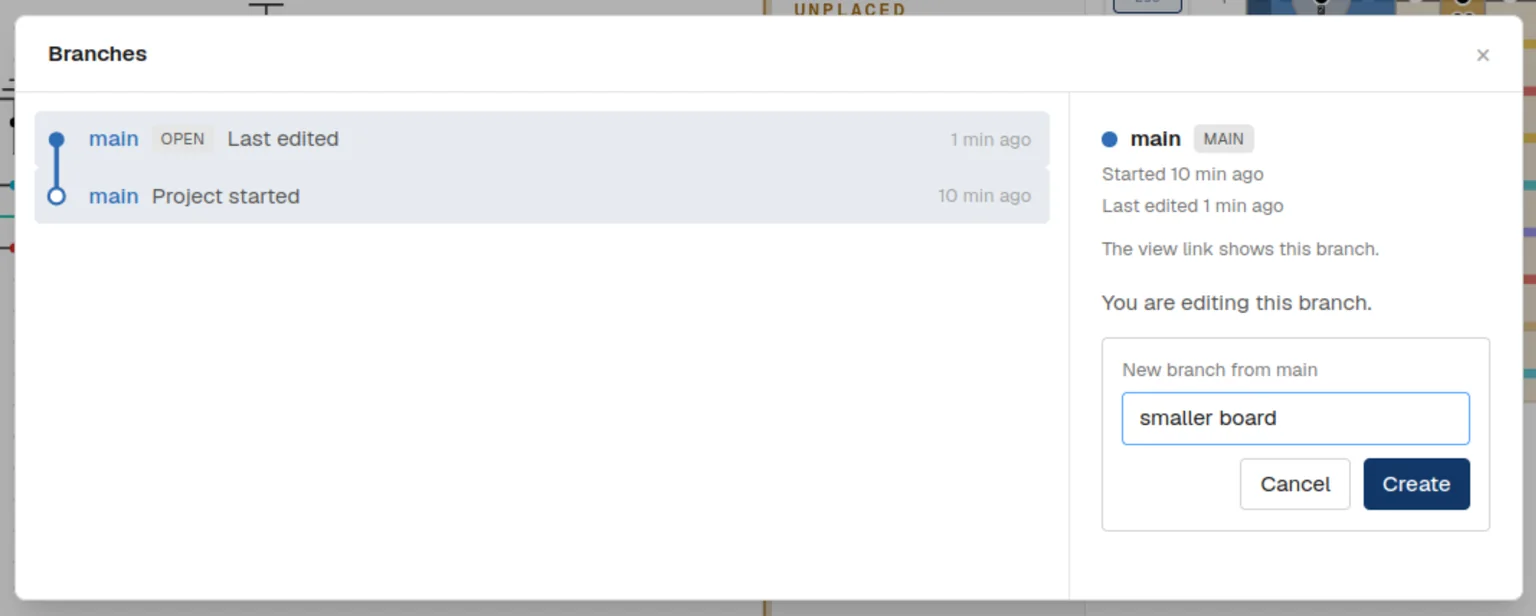
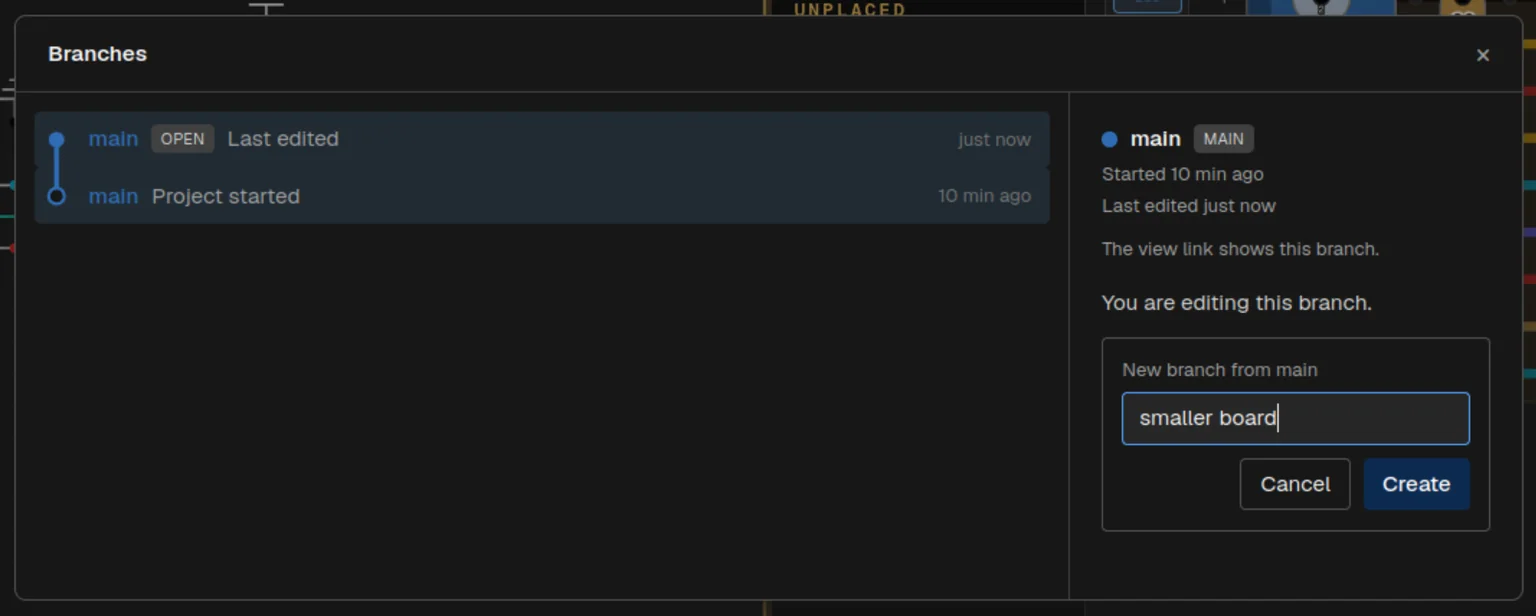
New branch from main asks for a name. The new branch starts as an exact copy of main and opens right away. From then on the two are saved separately: nothing you do on the branch changes main.
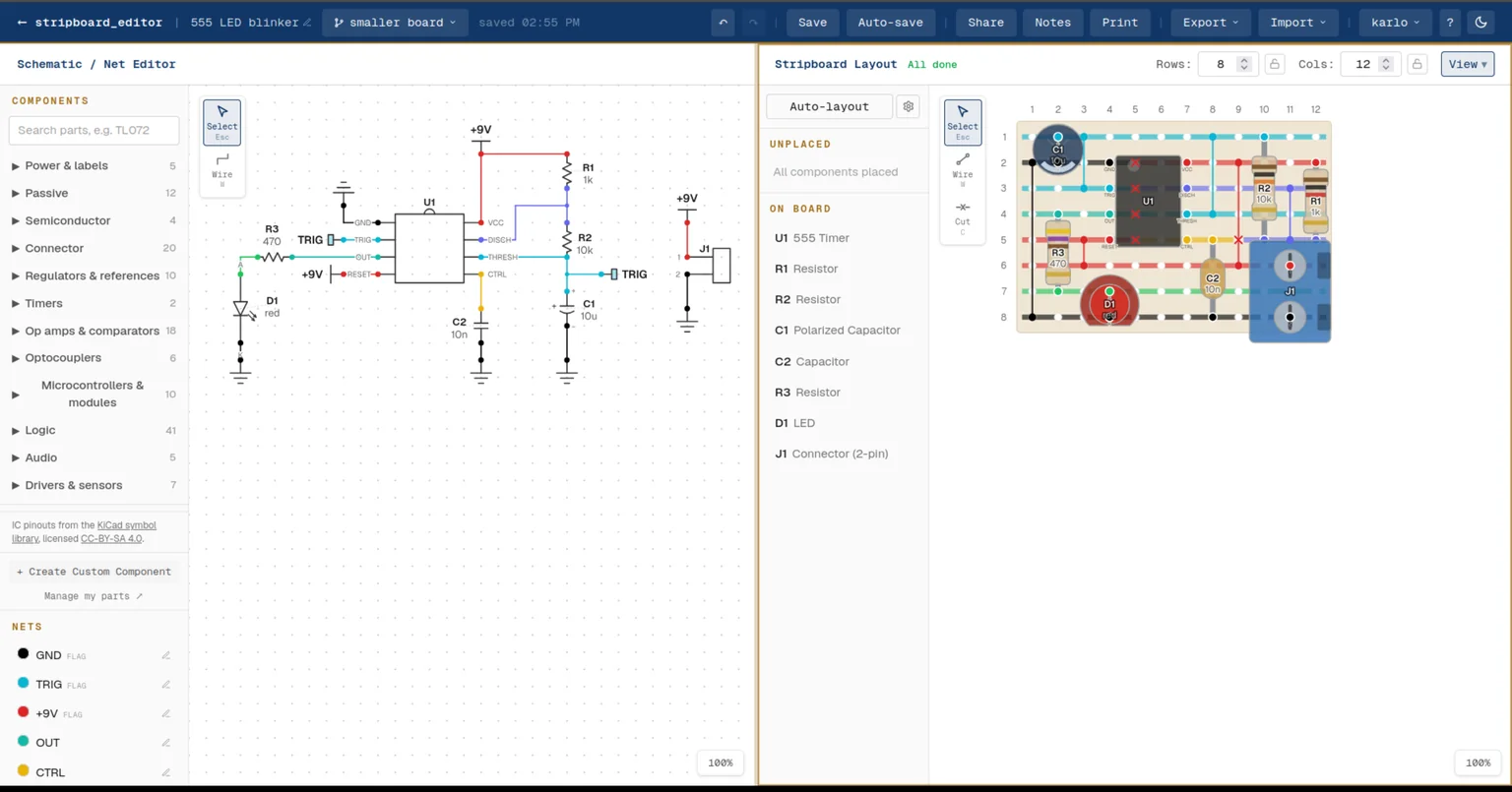
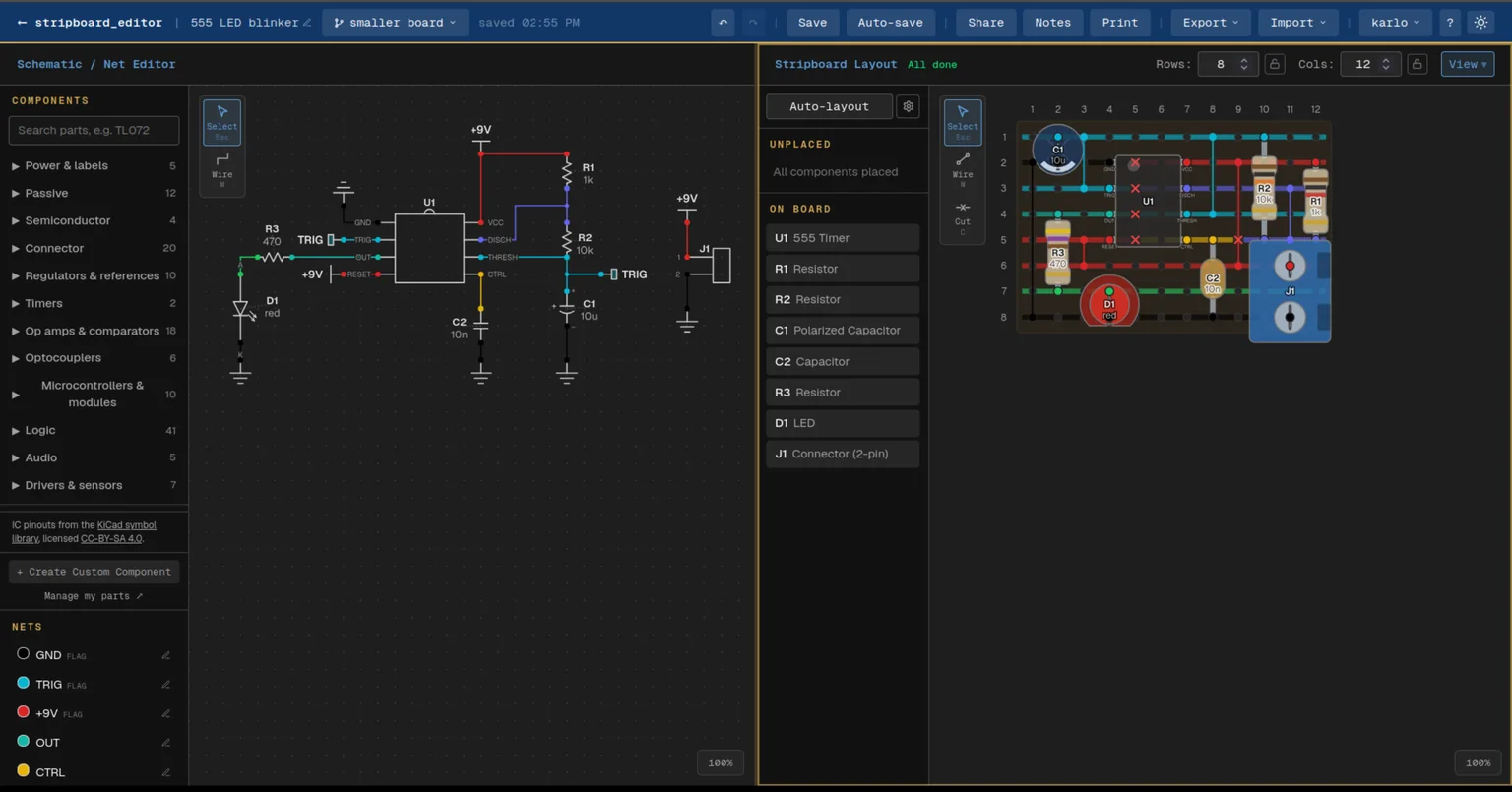
On the new branch, called smaller board here, the board was laid out again. It now fits on 12 by 8. Main still has its 13 by 9 board.
Switching between branches
Pick another branch in the branch menu to open it. With auto-save on, your changes are saved first. With auto-save off, and changes not saved yet, the editor asks:
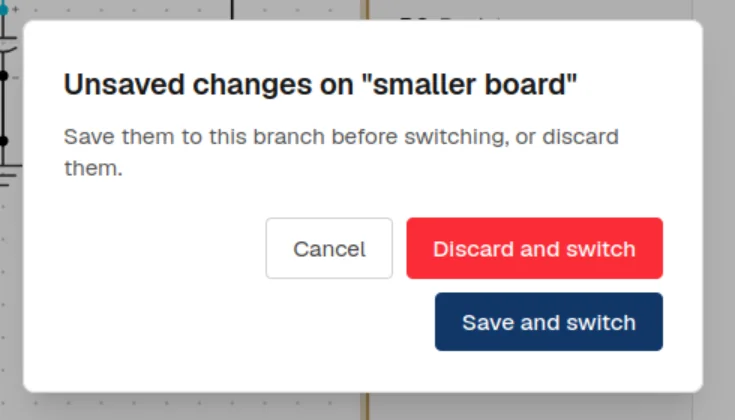
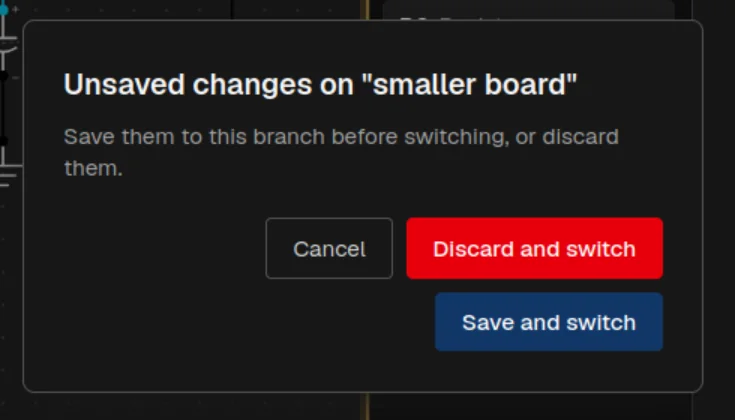
The editor reopens the branch you last worked on, and each branch keeps its own board, schematic, notes and settings.
Keeping up with main
You may switch back and forth. In this example I switched back to main and made a small edit: the blink was slowed down on main by changing R2 from 10k to 47k. The branch was started before that, so it still has 10k.
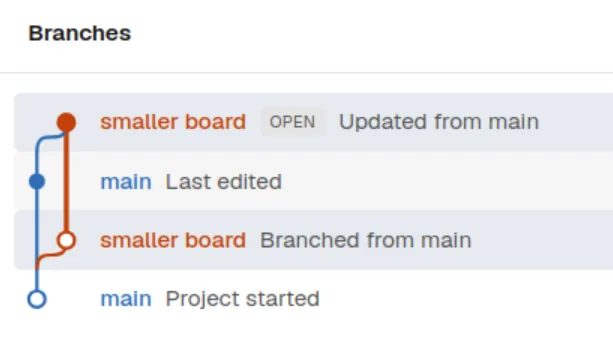
After switching back to the "smaller board" branch, a small amber dot appears next to its name, and the branches window shows you what happened:
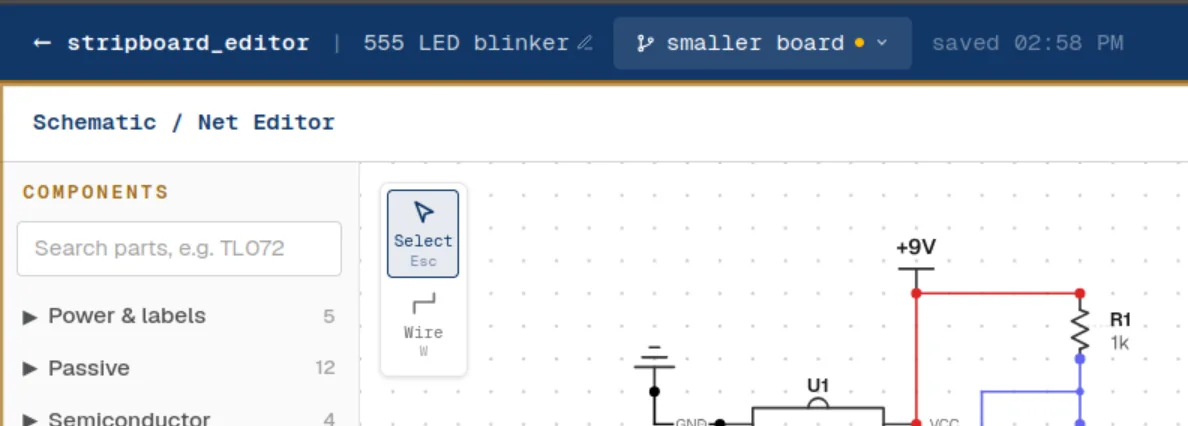
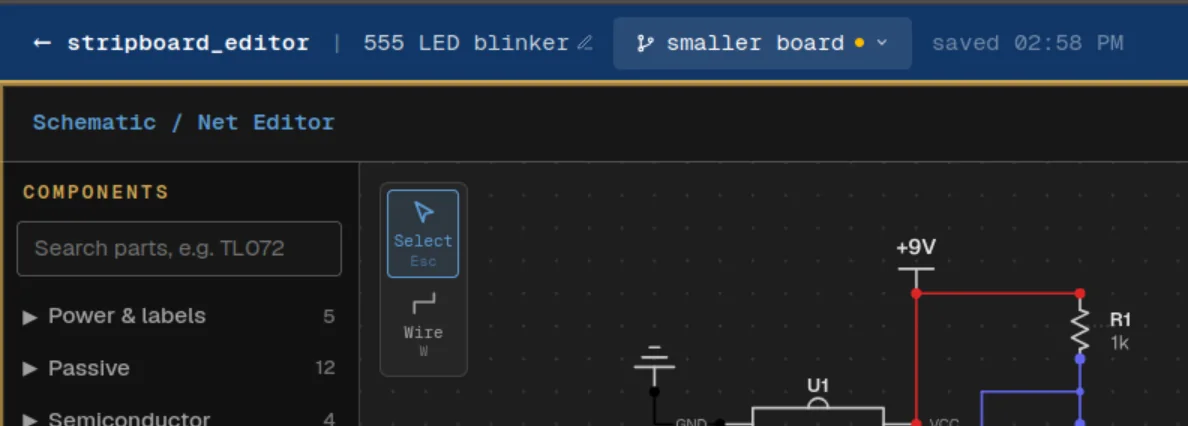
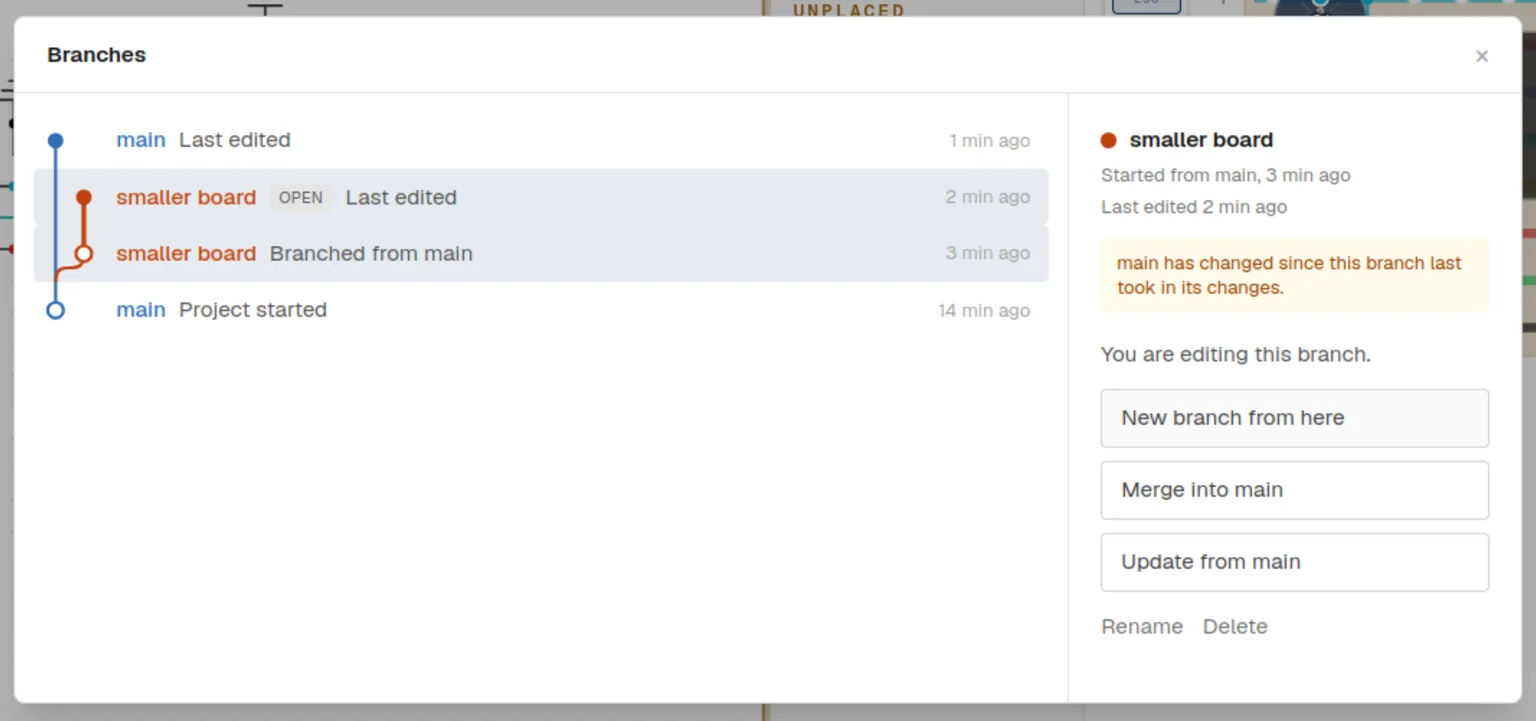
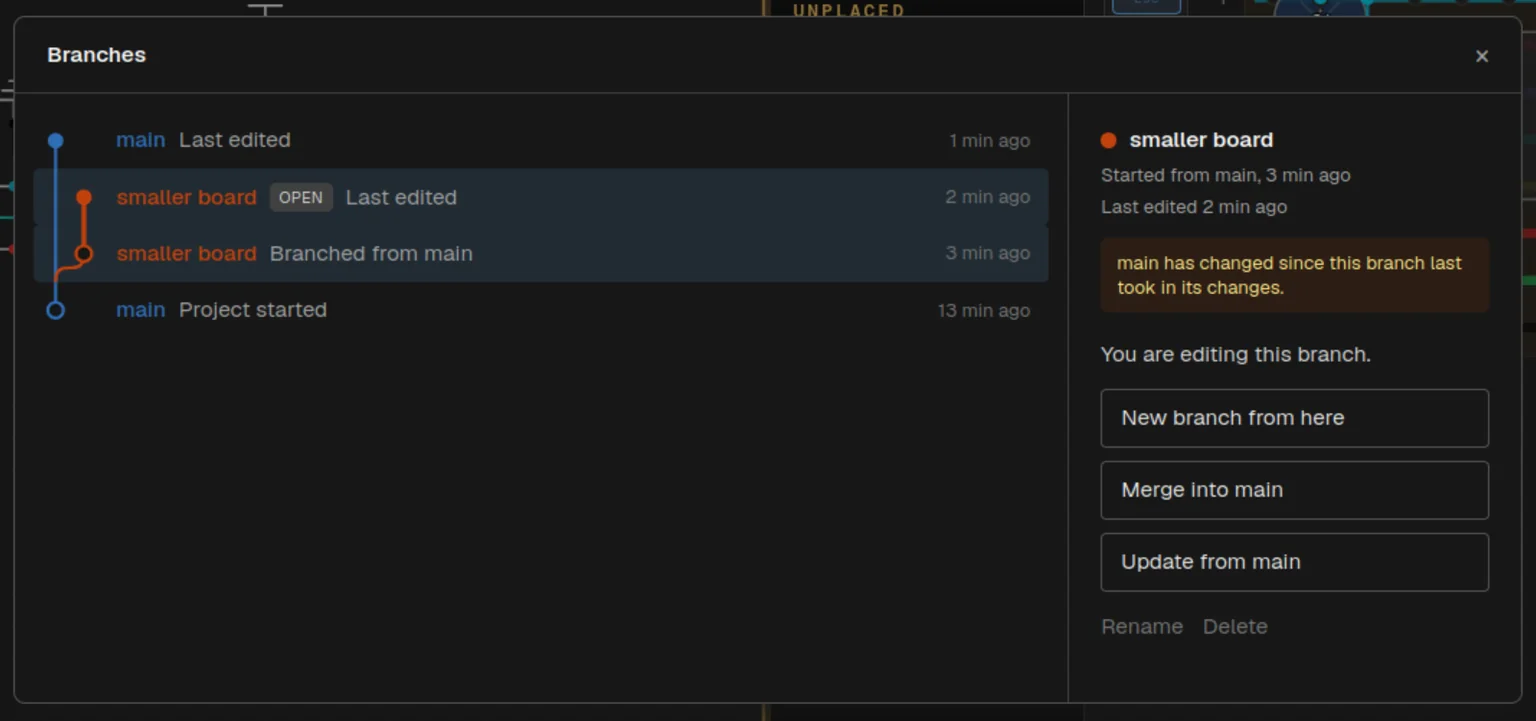
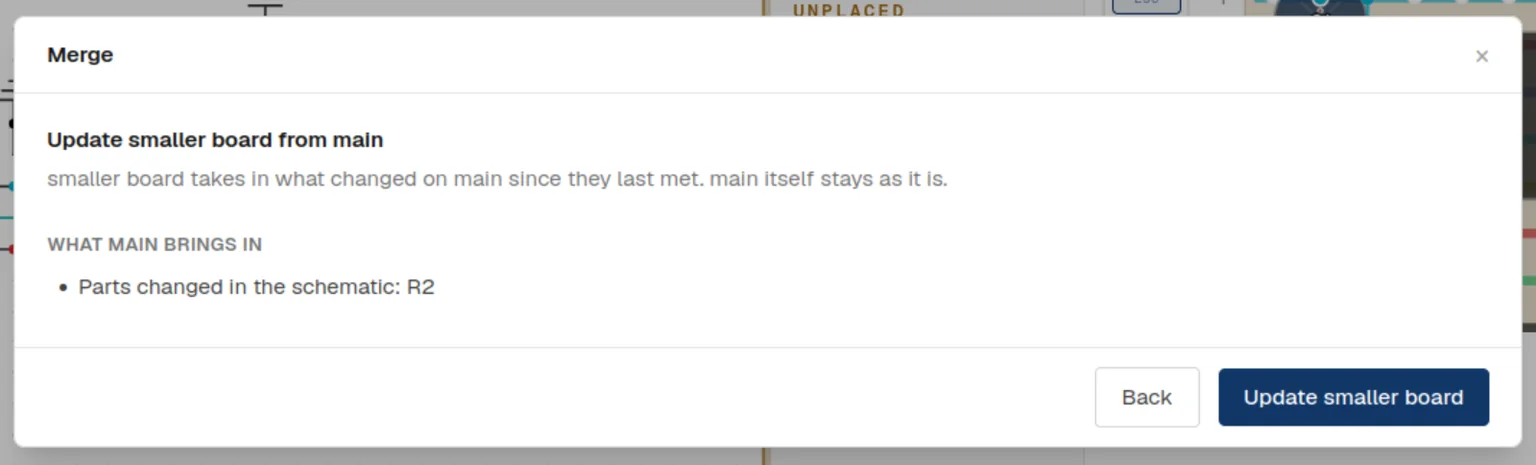
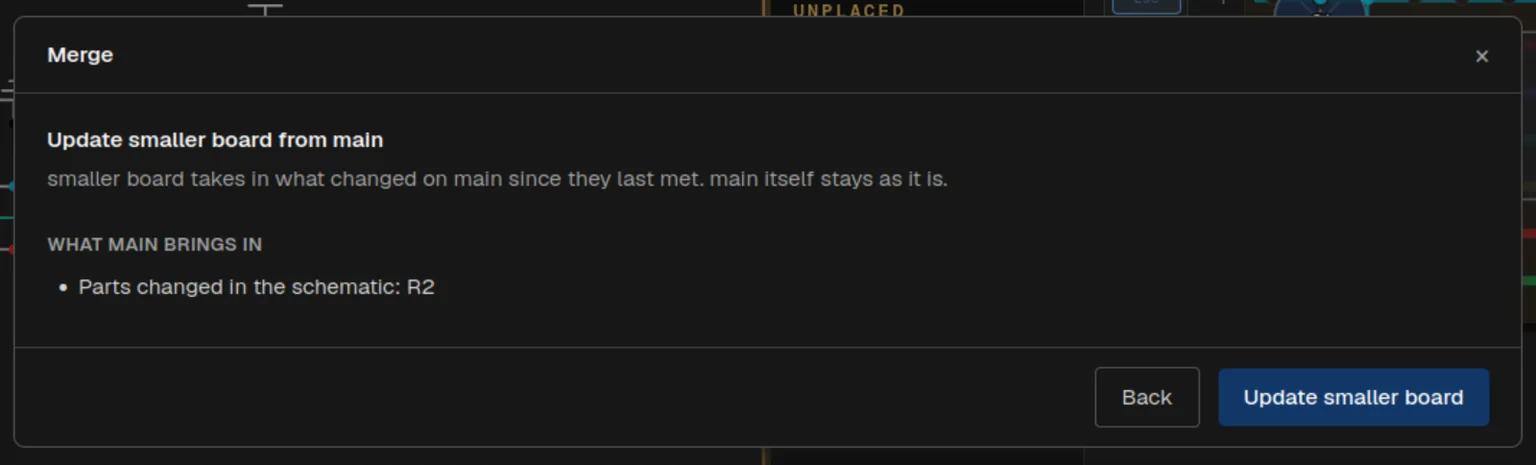
Update from main takes main's changes into the branch. Before anything is changed, a review lists what main brings in. The branch keeps everything it did on its own, so its smaller board stays.
Merging back
The smaller board works, so it should become the real one. Open the branches window, select the branch and click Merge into main. Main takes in everything the branch changed.
When both changed the same thing
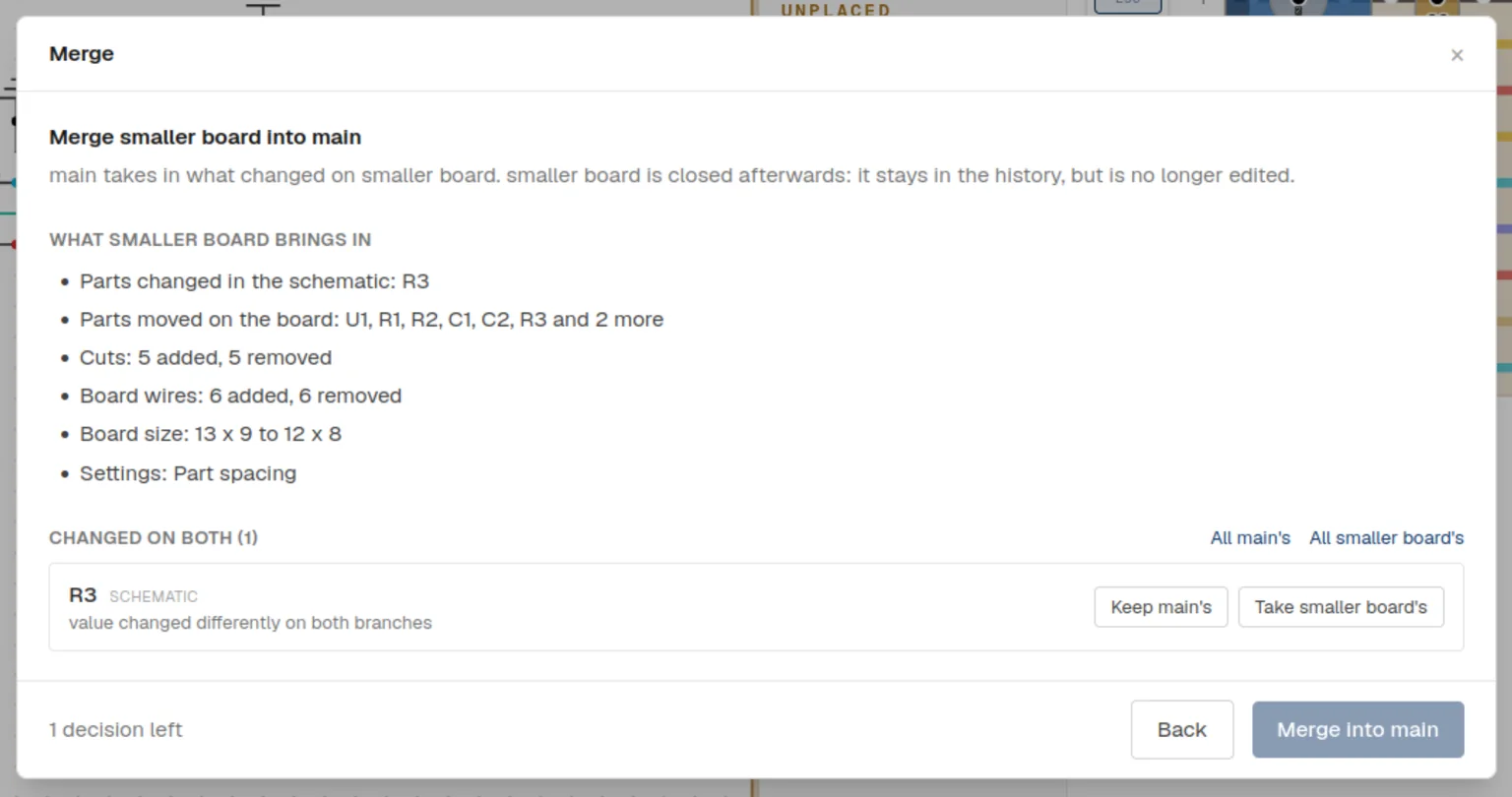
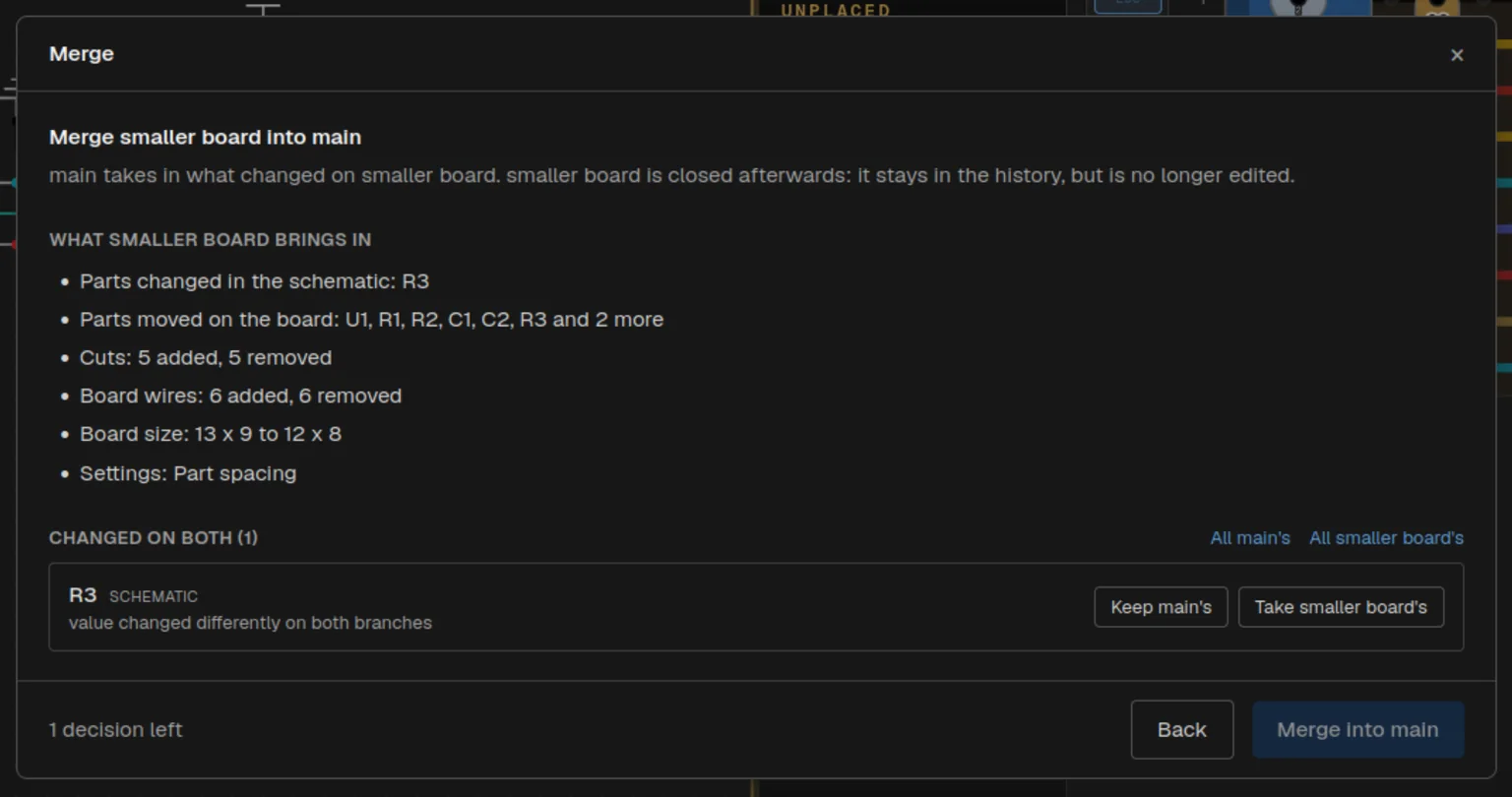
Before merging, R3 was changed on both branches: to 330 on the branch, to 1k on main. The editor cannot know which one you want, so it asks. Everything else is combined on its own; only things changed differently on both sides need a decision. This is called a merge conflict.
When both changed the board
If both branches moved parts, cuts or wires, the review asks how to bring the boards together. You can keep main's board, take the branch's, or combine both. Keeping one board is always clean: parts that board does not know yet arrive unplaced. Combining takes every move, cut and wire from both, which can leave parts overlapping, so the editor outlines any issue afterwards.
After the merge
The editor opens main with the merged design. The branch is done: it disappears from the branch menu, cannot be edited any more, and stays in the history so you can see where main's changes came from. To keep experimenting, start a new branch from main, which now has everything.
Reading the history
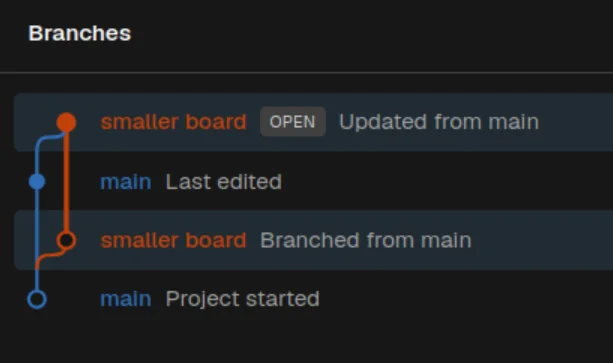
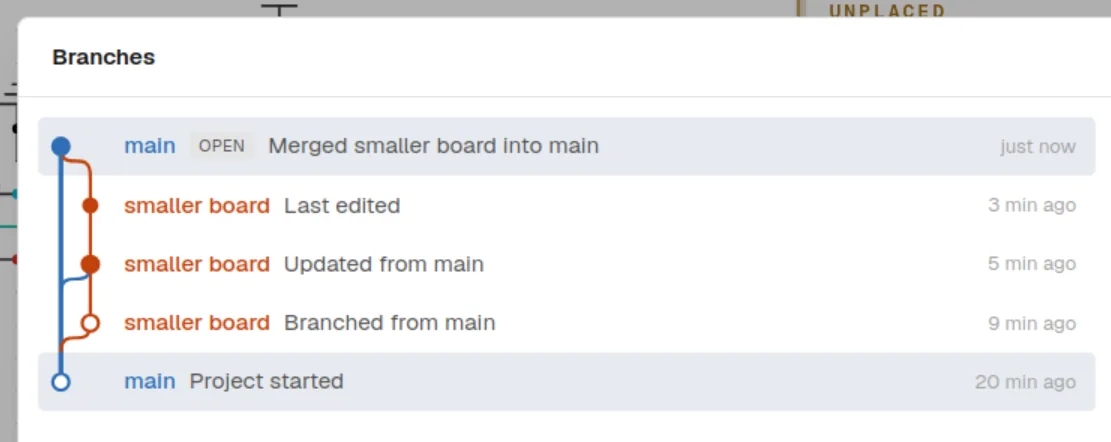
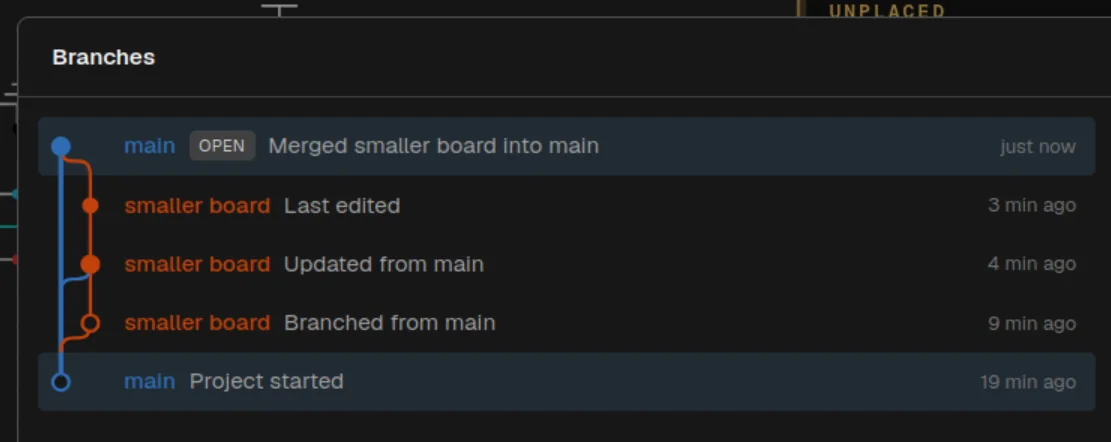
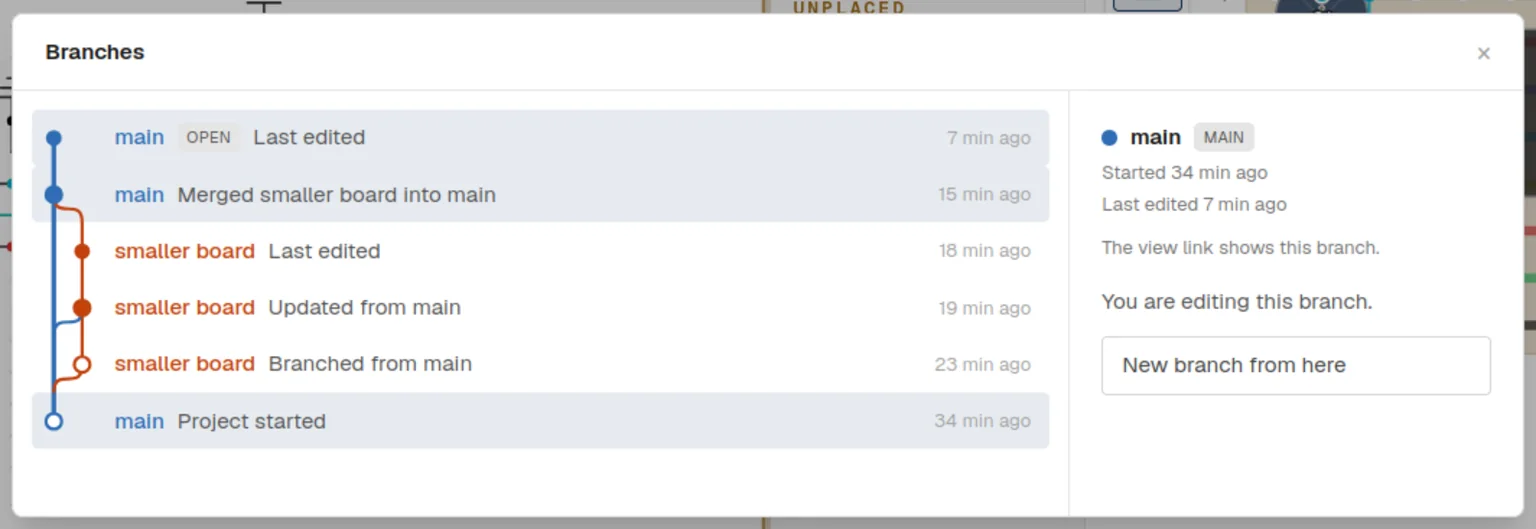
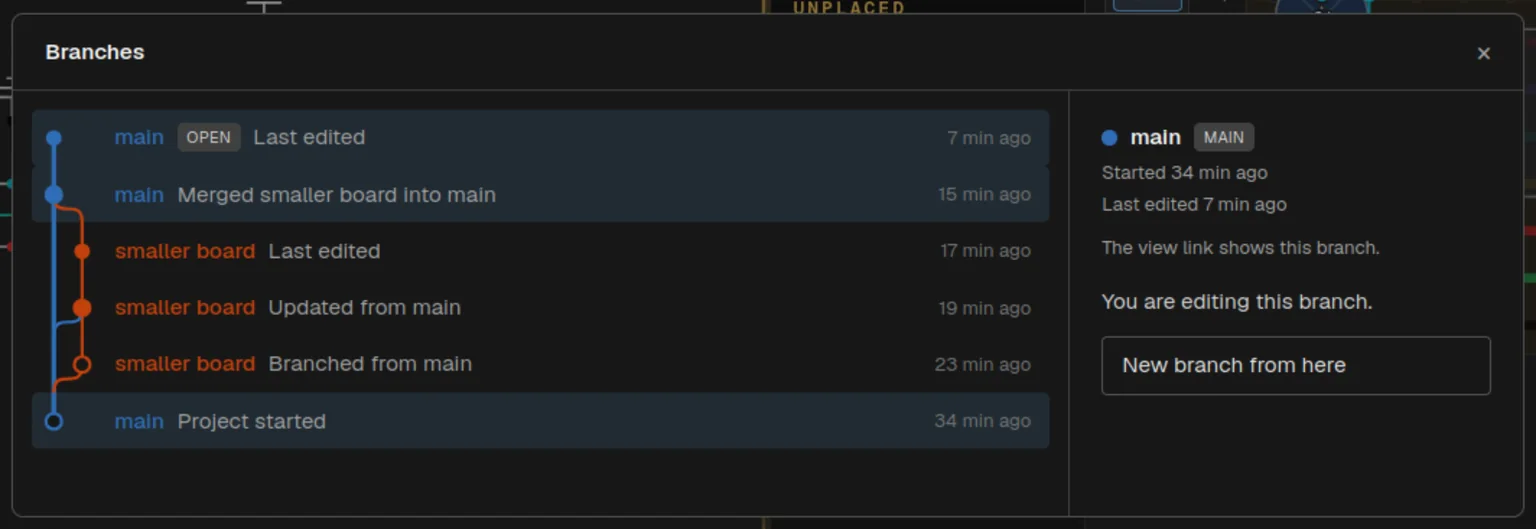
Manage branches in the branch menu opens the history, newest at the top. Each branch has its own coloured line:
- A hollow dot is where a branch started. A filled dot is a merge or the last time the branch was saved.
- A curve between two lines is a branch starting from another, or changes moving from one to the other.
- Open marks the branch you are editing. Click any row to see that branch and what you can do with it.
Deleting a branch
An idea that did not work out can simply be deleted from the branches window. Unlike a merged branch, a deleted one is gone from the history too. Main cannot be deleted, and neither can a branch that other branches started from.
Forks
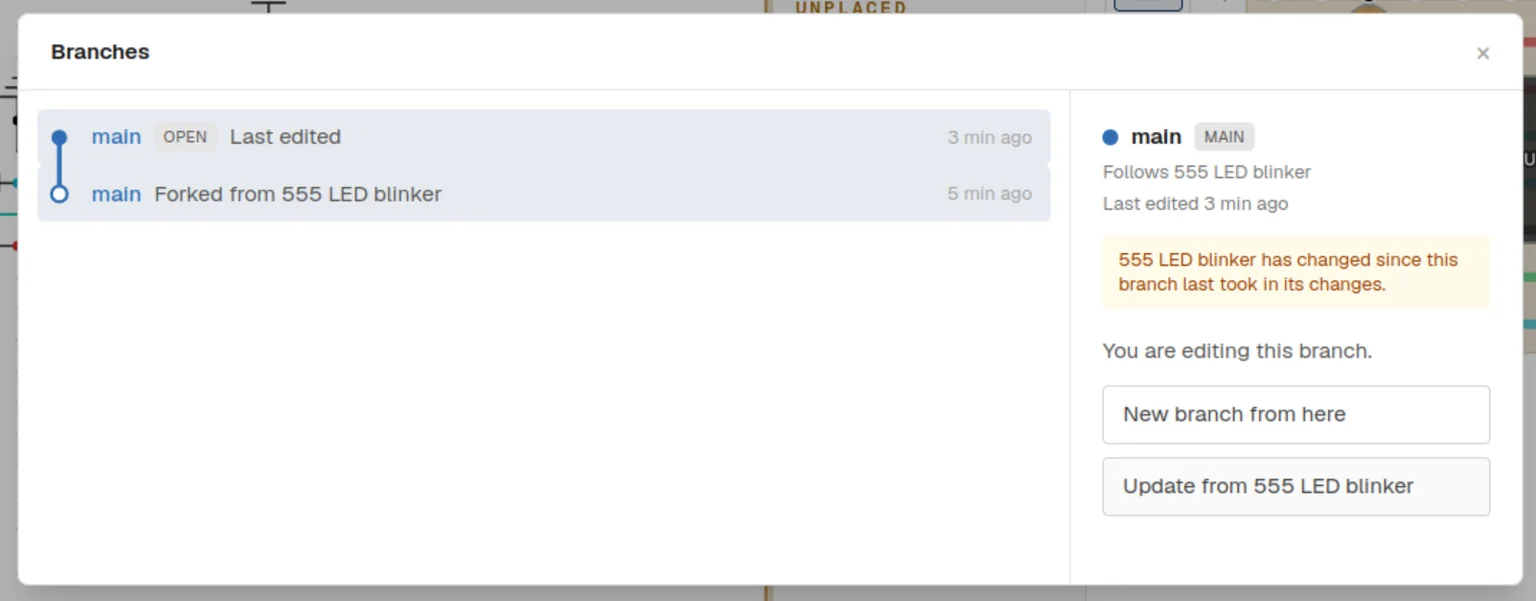
Anyone with a view link can click Fork & Edit to get their own editable copy of a project. A fork remembers where it came from: its main follows the original project's main.
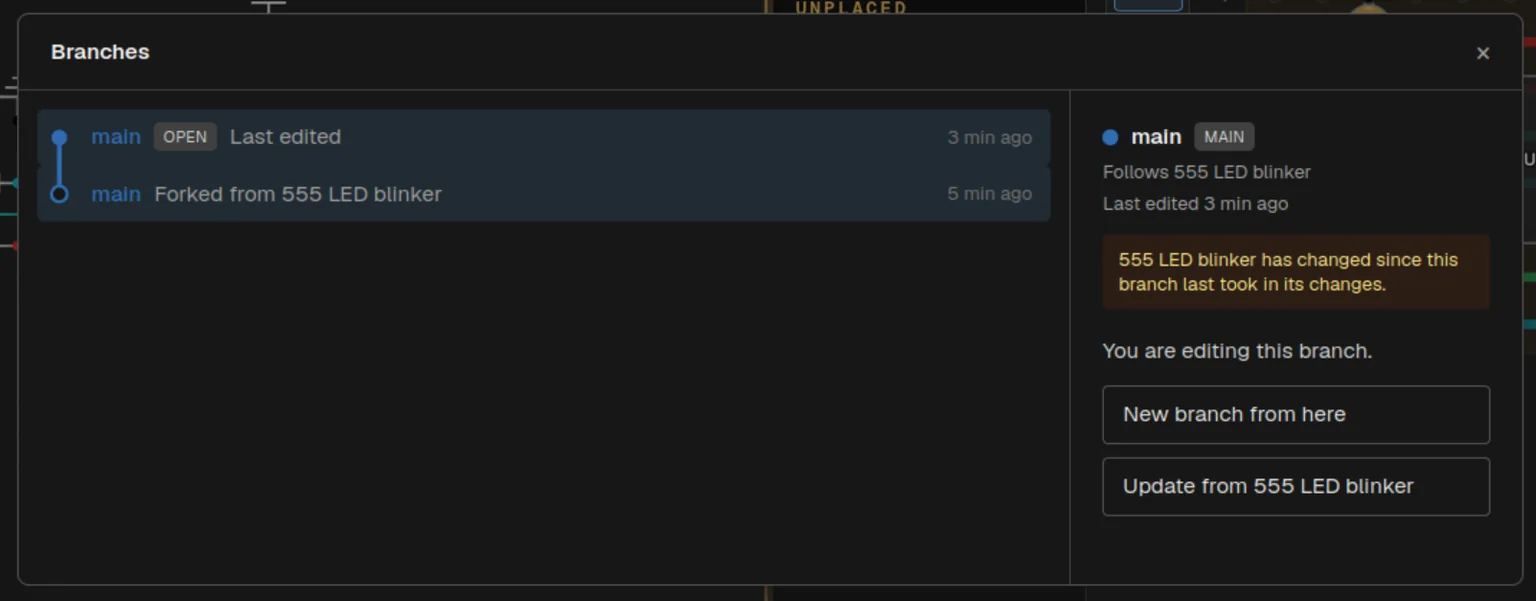
When the original changes, the fork gets the same amber dot, and Update from the original project takes those changes in, with the same review as before. In this example the LED in the original was changed from red to green, and the fork took it in.
It only works in that direction. A fork cannot change the original, so sharing a view link never lets anyone touch your project.
View links
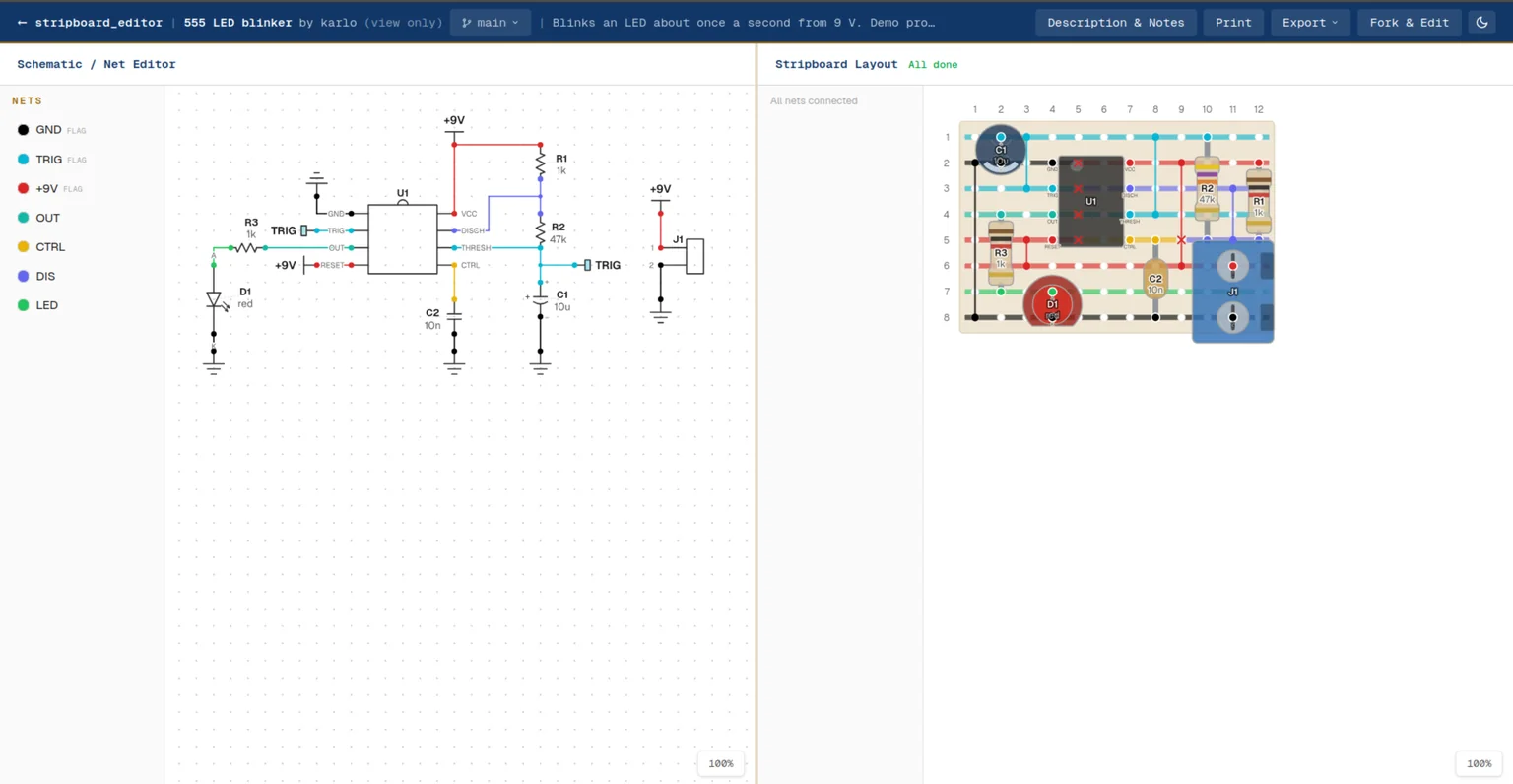
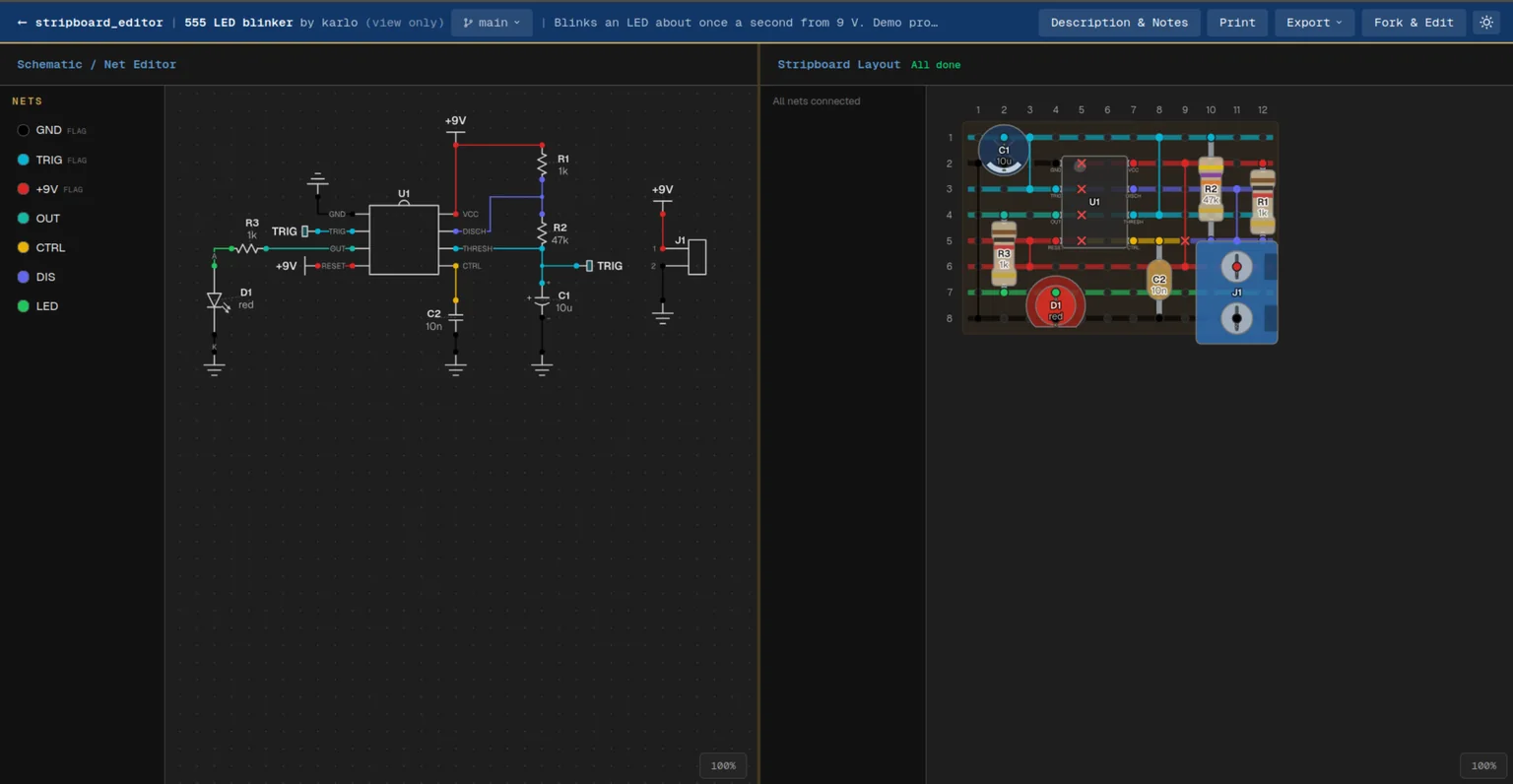
A view link always opens main, the version you would show someone. When a project has more branches, the view page has the branch name in its header too, so visitors can look at the other branches and their history without being able to change anything.
Good to know
- Export and Print use the branch that is open.
- Duplicate on the project list copies the whole project, every branch and its history included.
- The project list previews the branch you last worked on.
- A merge compares three versions: the two branches as they are now, and the last state they had in common. That is how it tells a part you added on one side from a part someone removed on the other.
- The schematic, the board and the settings are merged item by item. Parts are matched by their identity, cuts and board wires by where they sit, so a layout done again on one side does not double the wires.
New to the editor itself? The quick guide covers everything else.